온라인 에서 비디오 를 압축 하는 것
조정 가능한 품질로 비디오 파일 크기를 줄이십시오
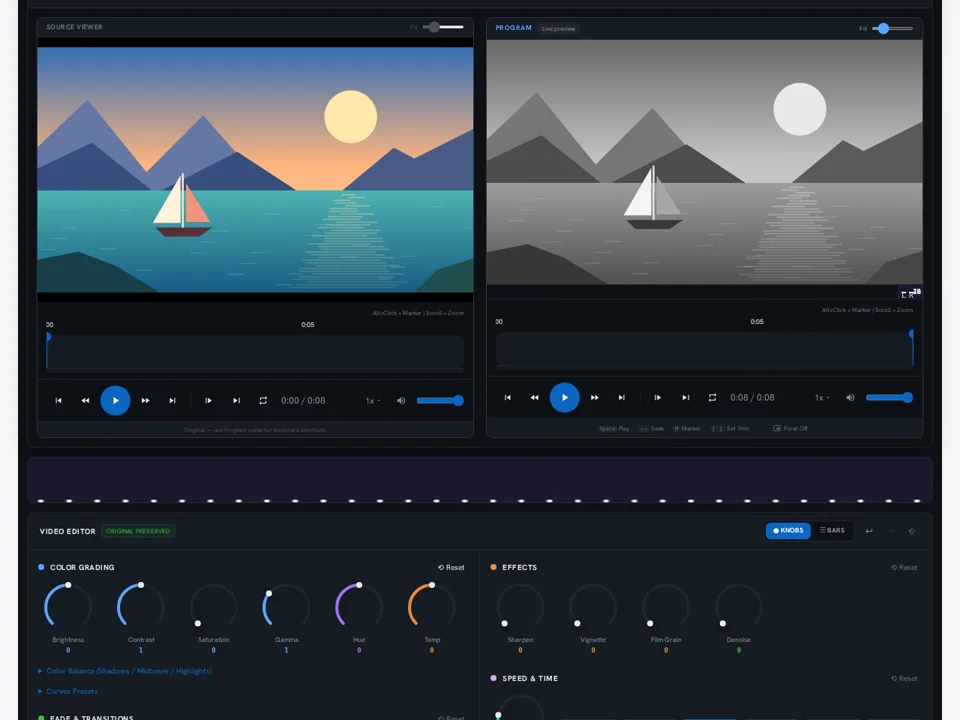
비디오 압축 is an online video application on MiOffice AI. 조정 가능한 품질로 비디오 파일 크기를 줄이십시오. Local processing depends on your device and file. Cloud processing uploads files and uses credits; review the processing mode before starting.
조정 가능한 품질로 비디오 파일 크기를 줄이십시오. MP4, MOV, AVI, WebM 및 MKV 압축을 90%까지 지원하며 시청 가능한 품질을 유지합니다.
How It Works
- Step 1. Upload your video
- Step 2. Choose quality level
- Step 3. Download your result
Related Applications
Frequently Asked Questions
Local processing is available only when the enabled mode and task eligibility allow it. Review the mode shown in the tool; cloud processing uses a different access and credit flow.
No. Duration, motion, resolution, and source quality all affect the result. Check the downloaded size against the destination's limit. If it is still too large, try a smaller resolution or a stronger compression setting and review readability and motion again.
About 비디오 압축
Reduce video file size dramatically while maintaining watchable quality. Perfect for email attachments, messaging apps, and social media uploads.
Key Features
How to Use 비디오 압축
- 1Upload Video — Drag and drop your video or click to browse.
- 2Set Compression — Choose quality level: High, Medium, or Maximum compression.
- 3Download — Process video and download the compressed version.