Prepare a smaller video for sharing
Upload your video, process it, and compare the download with the original before you send it.
Updated
See your changes before processing
Explore the preview controls with a short demo clip.
Review the processing mode and access shown in the tool. Local availability and cloud credit requirements depend on your task and account.
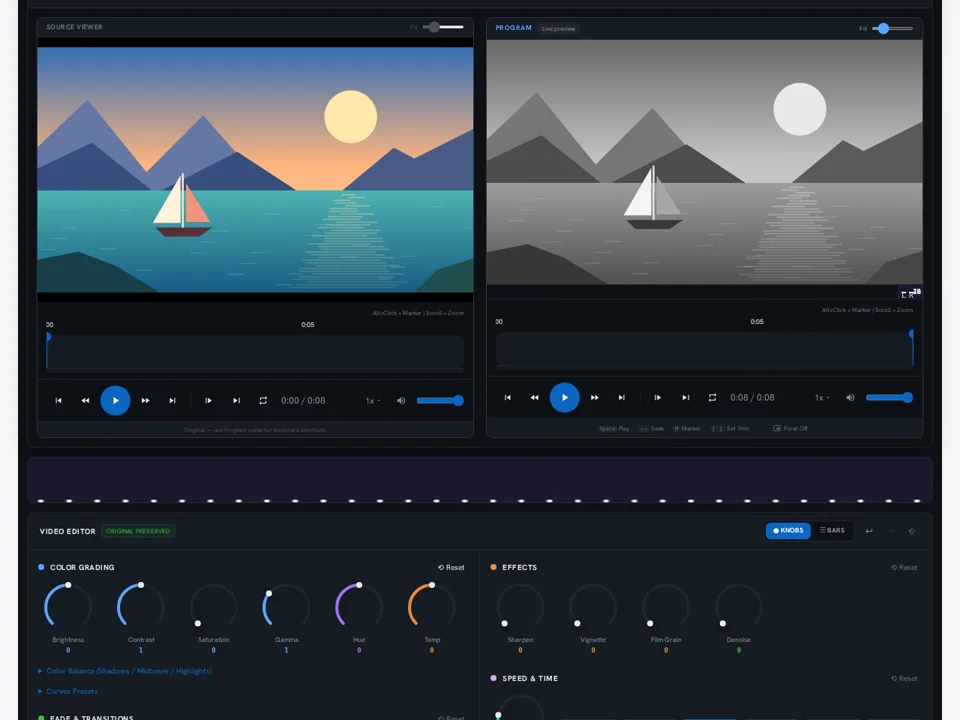
Upload your video, process it, and compare the download with the original before you send it.
How It Works
- Step 1. Start with the file you need to send
- Step 2. Process a copy and inspect it
- Step 3. If the file is still too large
Start with the file you need to send
Upload one MP4, WebM, MOV, AVI, or MKV file, up to 500 MB. Keep the original so you can compare picture detail and file size after processing.
For example, if a recording is too large for an attachment, check the attachment limit first. That gives you a concrete size to compare with the download.
Process a copy and inspect it
Click Process Compress Video to create a processed copy. Review any processing-mode choice and access prompt shown before starting.
Play the result, then download it. Check small text, faces, and fast movement at the size your audience will watch.
Compare the downloaded file size with your original and your destination’s limit. A video that is already heavily compressed may not become small enough for your purpose.
If the file is still too large
If you only need part of the recording, trim it before trying again. Keep the section your recipient needs rather than sending unrelated footage.
Do not judge the result by size alone. A file that fits the limit still needs readable text, usable sound, and enough detail for its purpose.
Common questions
Local processing is available only when the enabled mode and task eligibility allow it. Review the mode shown in the tool; cloud processing uses a different access and credit flow.
No. Duration, motion, resolution, and source quality all affect the result. Check the downloaded size against the destination's limit. If it is still too large, try a smaller resolution or a stronger compression setting and review readability and motion again.
Learn More
Continue with a related tool
Choose another step for your project. Each tool shows its supported inputs and processing options before you start.
Improve and export video: Adjust video appearance, compare enhancement, and prepare a smaller export.
Prepare clips for social platforms: Find a clip, add captions, and choose a platform-sized frame.