Combine your PDFs into one document
Put your PDFs in the order you want them read, then save one combined document. The pages within each file stay together.
Updated
Drop your PDF here
or click to browse
PDF · up to 100 MB
If an eligible guest task is offered, you can try it before signing in. Otherwise, sign in and check the allowance or credit cost shown before merging.
Put your PDFs in the order you want them read, then save one combined document. The pages within each file stay together.
How It Works
- Step 1. Add your PDFs and set their order
- Step 2. Merge, download and inspect your document
- Step 3. If a file will not open
Add your PDFs and set their order
Choose between 2 and 20 PDF files, up to 100 MB each. The file list shows the documents you have added.
Drag the file cards or rows into the order you need, then check their numbered positions. For example, place your cover letter first, the report next, and the appendix last.
This changes the order of whole files, not the pages inside them. If you only need a few pages from a document, use Split PDF first and add the extracted PDF to your merge.
Merge, download and inspect your document
Click Merge when the files are in order. Stay connected while you work; the tool will not start processing when your browser reports that it is offline.
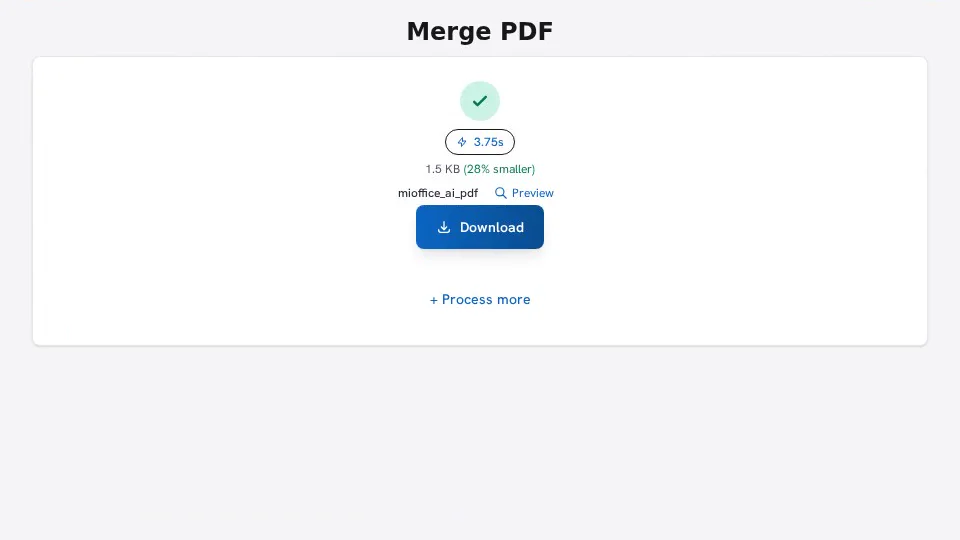
Click Download when the result is ready. If Auto-download is enabled, the download may start automatically after processing.
Open the saved PDF at each join between documents. Check that the last page of one file leads into the right first page of the next, and that no expected section is missing. Keep your originals until you are happy with the combined copy.
If a file will not open
If a selected file cannot be read, save a copy to your device and select it again. For a damaged or invalid PDF, try downloading the original again.
Renaming another file type to .pdf does not convert it into a PDF. Add documents that are already PDFs.
Try a three-page example
Start with a two-page itinerary and a one-page packing list. Put the itinerary first, then add the packing list. You can download the same files below and try it yourself.
The merged copy keeps Day 1 first, Day 2 second, and the packing list last. We reopened the file and checked the text and page order. These sample files contain no forms, links, or password protection.
Questions about merging PDFs
Not while it is locked. Unlock the PDF first, then add the unlocked copy. Merge PDF does not have a password-entry step.
No. You download a newly combined PDF. The merge reads your selected files and copies their pages into the result.
Open the downloaded file and check the page count, file order, orientation, and any forms or links you need. A successful merge does not prove that every document feature behaves the same in the combined file. Retain the originals until you finish reviewing it.