Compress a PDF for sharing
Choose a compression level, compare the file sizes, and check the saved PDF before you send it.
Updated
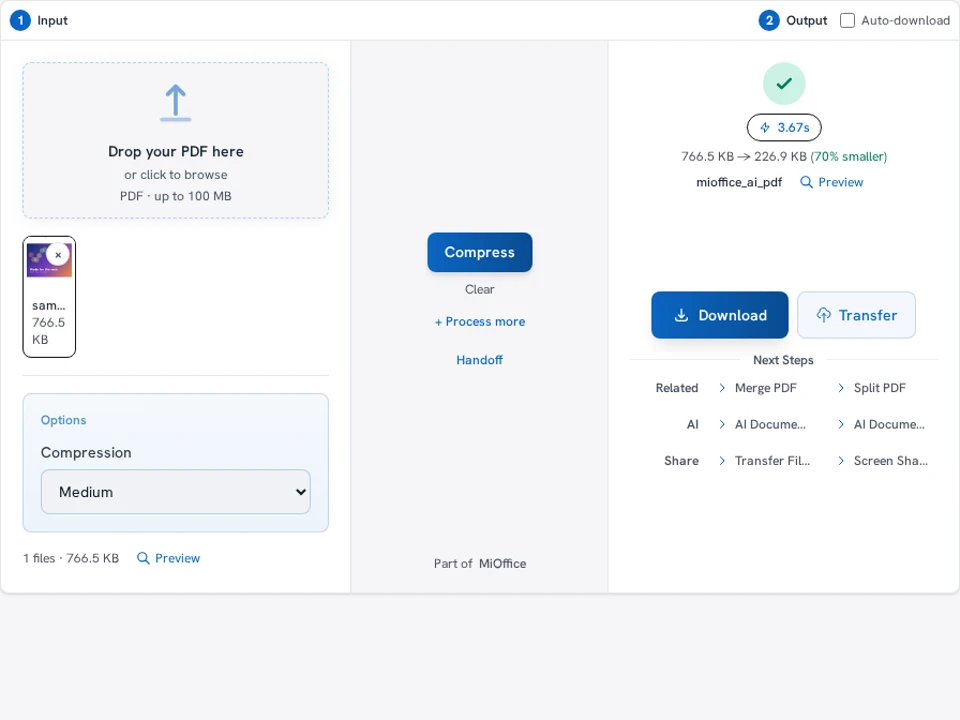
Drop your PDF here
or click to browse
PDF · up to 100 MB
A qualifying on-device guest trial may allow one task without sign-in. Otherwise sign-in is required; allowance and credit requirements depend on your account.
Compression can turn each page into a picture. In that result, you lose selectable text, text search, clickable links and fillable fields. If the person receiving your PDF needs those features, don’t send an image-based compressed copy. Keep your original.
How It Works
- Step 1. Choose your compression level
- Step 2. Compress and inspect the saved PDF
Choose your compression level
Start with Medium, the default under Compression, then compare the size and readability. Choose Low if fine detail matters more than reducing size. A stronger setting may help with size, but it can also make small text and images less clear.
| Compression | When to consider it |
|---|---|
| Low | Start with the gentlest image compression when small text or fine detail matters. |
| Medium | Try the default, then check whether the result fits your needs. |
| High | Try stronger image compression if Medium is still too large. |
| Maximum | Use the most aggressive setting only if you can accept more loss of fine detail. |
Compress and inspect the saved PDF
1. Choose one PDF
Open one .pdf file, up to 100 MB. If it has password protection, unlock a copy first. Once it loads, choose your Compression level.
2. Process the file
Click Compress, then compare the original and output sizes shown in the result. Open Preview output to check the pages.
Want to inspect the result before it downloads? Turn off Auto-download before you click Compress. It’s on by default unless you changed the saved setting, and it attempts a download five seconds after processing finishes.
3. Save and check your copy
Click Download and open the saved PDF. Check it against the size limit you need to meet, then zoom in on small text and detailed images. If the pages look too soft, start again with your original and a less aggressive level.
Questions about PDF compression
The tool returns your original if the new PDF is not smaller. An already compressed PDF may offer little room for reduction without losing image quality. If you need to meet a tight upload limit, consider removing unnecessary pages or splitting the document.
No. Compression runs in your browser, but some unexpected processing errors can upload a copy of your PDF for troubleshooting. That error-reporting path accepts files up to 20 MB.